How to Disable a VPN on Any Device: Complete Guide
How to Disable a VPN on Any Device: Phones, Computers, Smart TVs, Consoles & More
Turning off a virtual private network should feel like a simple, one-click task. Yet, if you have ever tried to shut down a connection only to watch it resurrect itself minutes later—or noticed your browser stubbornly showing a foreign IP address—you know it can be frustratingly complex. When you flip that master switch, you instantly strip away your digital camouflage, exposing your real IP address and DNS queries to your ISP or local network. While disconnecting on a trusted home Wi-Fi network is usually harmless, doing so on a public hotspot at an airport or coffee shop leaves your device completely vulnerable.
Before making any changes, it helps to understand your goals. Sometimes you just need a temporary pause to load a local shopping site, while other times you need a complete system wipe. To help you navigate these scenarios safely across all your hardware, this guide breaks down how to properly manage, pause, or remove your protection using reliable tools like FoxyNet and its core protocols, including VLESS Reality (from the v2ray family, supporting both Tunnel and Direct modes), OpenVPN, L2TP, and IKEv2.
Understanding the Four 'Off' States: Pause, Disconnect, Disable, and Uninstall
Knowing the degree of disconnection you need saves time and prevents network lockouts. Not all "off" states are created equal, and choosing the wrong one can either leave your data exposed or trap your internet traffic behind an active firewall.
The Difference Between a Temporary Pause and a Full Uninstall
A temporary pause temporarily halts encryption for a few minutes to complete a quick task, such as checking a local bank account or accessing a regional price on an online store. Disconnecting, on the other hand, ends the active session while keeping your app ready for a quick reconnect. Disabling involves turning off auto-connect features, kill switches, and system-level rules so your device stops trying to revive the tunnel. Finally, a nuclear uninstallation deletes the app and its configuration profiles completely from your operating system.
When to Choose Each Disconnection Method
| Disconnection State | Best Used For | Impact on Internet | System-Level Changes |
|---|---|---|---|
| Pause | Quick local checks, fixing slow loading apps | None (resumes automatically) | Temporary pause in routing |
| Disconnect | Ending a work session, switching servers | Drops briefly during handshake | None; app remains ready |
| Disable | Troubleshooting slow speeds, ISP throttling | Restores normal direct connection | Turns off auto-reconnect and kill switches |
| Uninstall | Freeing up storage, changing providers | Removes all software hooks | Deletes profiles, adapters, and app files |
How to Turn Off a VPN on Mobile Devices and Desktop Computers
If your connection keeps bouncing back to life, it is usually because you closed the app interface without disabling the operating system's master override.
Disabling on iPhone, iPad, and Android Devices
On modern iOS versions, Apple places the toggle directly in the main Settings menu. Open your settings, look just below Personal Hotspot, and flip the master toggle to Off. If you are using Android, navigate to Settings, select Network & Internet, and tap VPN.
Shutting Down Connections on Windows and macOS
For Windows 11 and 10 users, click the Wi-Fi or Globe icon in your taskbar, select your active connection, and hit Disconnect. You can also dive into Settings, choose Network & Internet, and turn off your active tunnel. On macOS, click the status menu icon in the top-right corner, or open System Settings, select VPN, and toggle the master switch to Off.
Linux and Chromebook Specific Steps
Linux users can use the graphical network manager to click Disconnect, or open the terminal for command-line management. For OpenVPN, run sudo systemctl stop openvpn@[config-name], and for WireGuard, use sudo wg-quick down [interface-name]. Chromebook users simply click the time in the bottom-right corner, open Settings, go to Network, and toggle the active connection off.
Handling Stubborn Connections: Troubleshooting Zombie Tunnels and Dead Internet
Nothing is more frustrating than a connection that refuses to stay dead or an internet connection that suddenly dies the moment you disconnect.
Why Your VPN Keeps Reconnecting Automatically
If your device keeps resurrecting a dropped tunnel, you are likely dealing with a zombie auto-reconnection feature. Operating systems use system-level triggers like iOS "Connect on Demand" or Android "Always-on VPN" to actively pull your device back into an encrypted tunnel. To stop this behavior, you must disable the auto-reconnect setting at both the app level and deep within your device's network settings.
Fixing Dead Internet Caused by Active Kill Switches
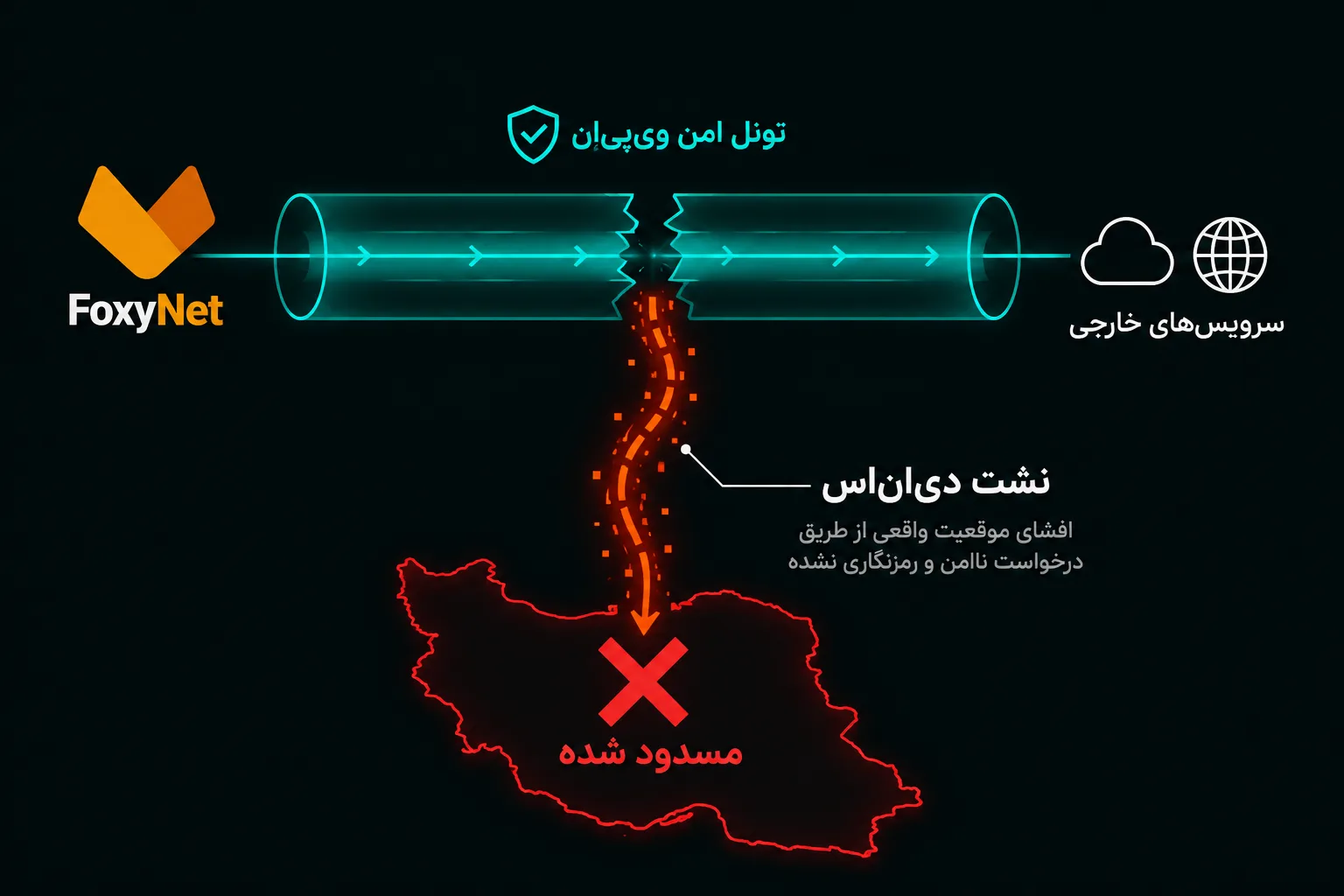
If your web pages refuse to load after you hit disconnect, your Kill Switch or Network Lock is still active. This safety feature blocks all unencrypted traffic when a tunnel drops unexpectedly.
[Active Tunnel] ---> (Connection Drops) ---> [Kill Switch Engaged] ---> [Internet Blocked for Safety]
To restore your browsing, simply reopen your app, navigate to security settings, and turn off the kill switch or "Block internet without VPN" rule.
Dealing with Grayed-Out Toggles and MDM Profiles
If your system toggle is faded and unresponsive, your device is likely controlled by a Mobile Device Management (MDM) profile. Schools and workplaces enforce these profiles to lock down network settings. Check your system management menus; if a corporate profile owns the configuration, you will need to contact your IT administrator for authorized removal.
Disabling VPNs on Smart TVs, Gaming Consoles, and Wi-Fi Routers
Living-room devices lack traditional app stores and user interfaces, meaning privacy layers are often managed at the router level.
Turning Off VPNs on Apple TV, Fire TV, and Android TV
On newer Apple TV devices running tvOS, open your installed app and select Disconnect, or check Settings, General, and VPN & Device Management. For Amazon Fire TV Sticks, go to Settings, select Applications, and choose Force Stop or Uninstall. Android TV users can manage their connections directly through the Network & Internet settings menu.
Managing Router-Level VPNs on ASUS, TP-Link, and GL.iNet
If your entire household network is routed through a hardware device like an ASUS router, TP-Link Deco, or GL.iNet travel router, you must access the admin panel via a web browser using default gateway addresses like 192.168.1.1 or 192.168.0.1. Log in, navigate to the VPN Client dashboard, and deactivate the active client protocol—whether you are running OpenVPN, IKEv2, or VLESS Reality in Tunnel or Direct mode.
Consoles, Steam Deck, and Smart DNS Workarounds
PlayStation, Xbox, and Nintendo Switch consoles do not natively support client software. If they appear to be tunneled, the signal originates from your router, a shared PC hotspot, or a manual Smart DNS configuration. Simply revert your console's network DNS settings from manual entry back to automatic detection.
How to Verify Your VPN Is Truly Off and Safer Alternatives
Never rely solely on an app's interface to confirm your status. Always run physical verification checks to ensure your real IP address is no longer masked.
Quick Tests to Confirm Your Real IP and Location
Open a web browser and visit a trusted IP lookup tool. If the displayed location matches your physical city and your ISP, your connection is successfully disabled. You can also search for "what is my location" on major search engines to verify that regional geo-blocks and location spoofing have ceased.
Using Split Tunneling Instead of Fully Disabling Protection
If you only want to turn off protection for a single application—such as a local banking app or a regional streaming service—consider using Split Tunneling. This feature lets you route specific apps outside your encrypted tunnel while keeping your sensitive browsing protected.
Why FoxyNet Offers a Smarter Way to Handle Network Rules
Instead of constantly turning your security on and off, configure smart network rules. FoxyNet allows you to automate your security preferences, keeping your connection disabled on secure home Wi-Fi networks while automatically engaging robust protocols like VLESS Reality the moment you connect to public Wi-Fi.
Frequently Asked Questions
Is it safe to disable my VPN?
Disabling your protection is generally safe on private, encrypted home networks. However, doing so on public Wi-Fi exposes your unencrypted traffic to network snoopers. Always re-enable your security as soon as you finish tasks that require a direct connection.
Why does my VPN keep turning itself back on?
This happens when system-level auto-reconnect features conflict with your app settings. Operating systems view a dropped tunnel as an error and automatically resurrect it. You must disable auto-connect features in both the app and your device settings.
What's the difference between disabling and uninstalling a VPN?
Disabling simply turns off active routing, kill switches, and background tunnels while keeping the app ready. Uninstalling completely removes the application files, network adapters, and configuration profiles from your operating system storage.
Will disabling my VPN cancel my subscription?
No. Turning off your connection, pausing a session, or even deleting the app from your phone does not cancel your active subscription. Billing renewals and account status remain tied to your user profile until you cancel through the billing portal.
How do I disable a VPN that I didn't install on a work or school device?
Managed devices use MDM configuration profiles that lock down network settings. If the toggle is grayed out, your employer controls the policy. You will need to contact your IT administrator for permission to remove or alter the profile.
Can I disable a VPN for specific apps only?
Yes. Instead of disabling your entire connection, you can use Split Tunneling to route designated apps outside the encrypted tunnel. This allows local apps to function normally while your browser and other tools stay protected.
How do I check if my real IP address is exposed after turning off FoxyNet?
Visit an independent IP lookup website immediately after disconnecting. If your actual geographic location and local internet service provider appear on the screen, your real IP address is successfully unmasked and active.
Conclusion
Managing your network connections does not have to be a frustrating guessing game. Whether you need a brief pause for online banking, a system-level shutdown to fix slow loading speeds, or a complete removal of stubborn configuration profiles, knowing where your device hides its master overrides gives you total control. Always remember to check for active kill switches, clear system-level auto-connect triggers, and verify your real IP address using trusted lookup tools before browsing on public networks.
When you want seamless security without the hassle of constant toggling, FoxyNet provides the ideal balance. With flexible protocols like VLESS Reality supporting advanced Tunnel and Direct modes, alongside reliable OpenVPN, L2TP, and IKEv2 configurations, you can easily customize your digital environment. Protect your data where it matters, bypass restrictions effortlessly, and let FoxyNet handle the heavy lifting behind the scenes.
Related Articles